Until now, a Rail Typing account meant a Google account. That shut out anyone who can't reach Google from where they live, or who simply doesn't want to use it. From today there is a second way in: sign up with your email address and a password. You confirm the address with a six-digit code, and there's nothing else to link or install.
An email account is a full account. It keeps your runs, personal bests and badges on every device, lets you enter the daily contest, and gets the same 7 days of Pro as a new Google account.
Where to find it
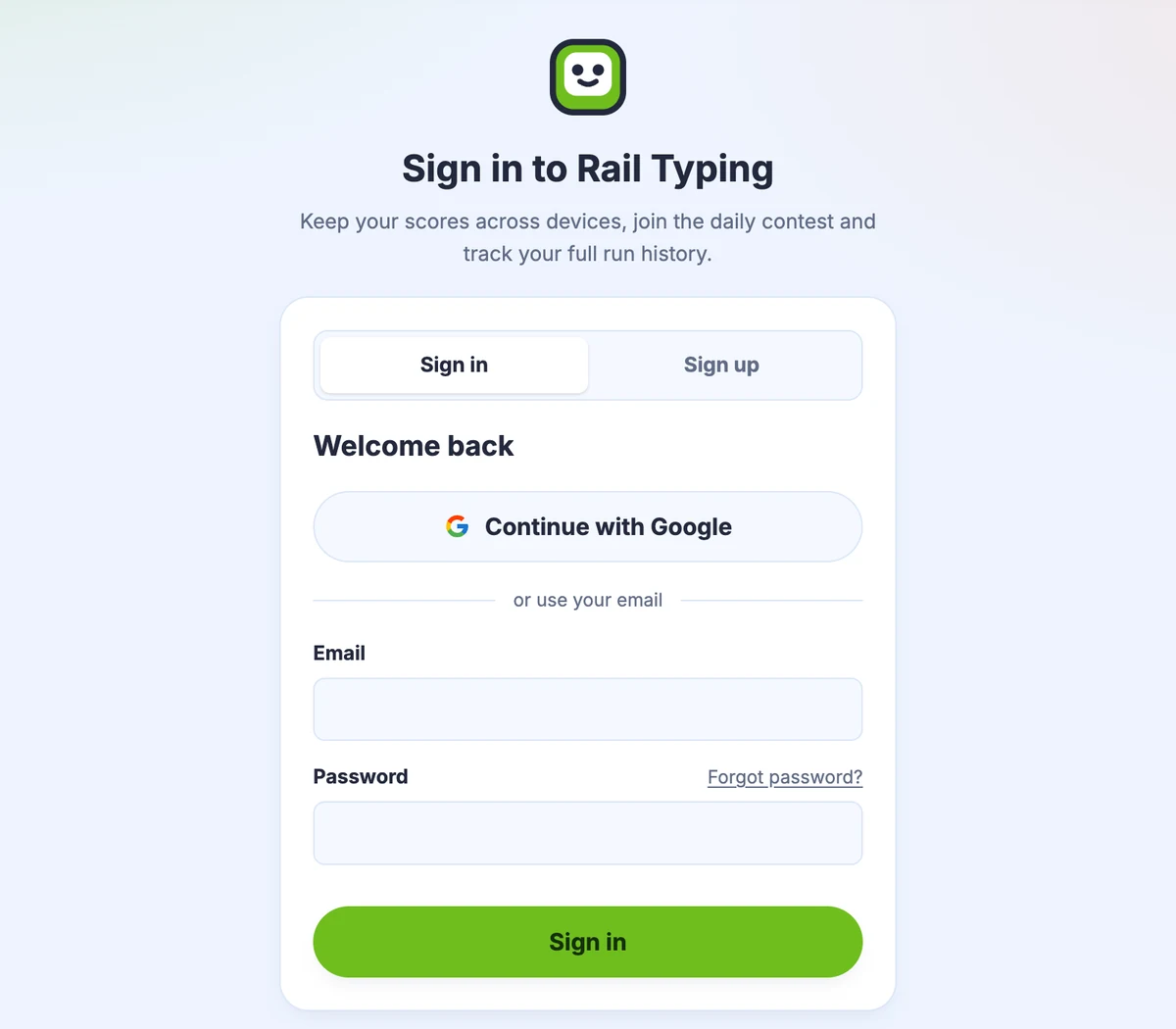
Every "Sign in" button now goes to one page, /login. It has two tabs, Sign in and Sign up. Both have Continue with Google at the top and the email form underneath.
Signing up in two steps
- Open Sign up and enter your email address and a password of at least 8 characters, typed twice. Press Send code.
- A six-digit code arrives at that address. Enter it under Verification code and press Verify and continue. The code is valid for 10 minutes. If it doesn't arrive, you can ask for a new one after a minute, or go back with Use a different email.
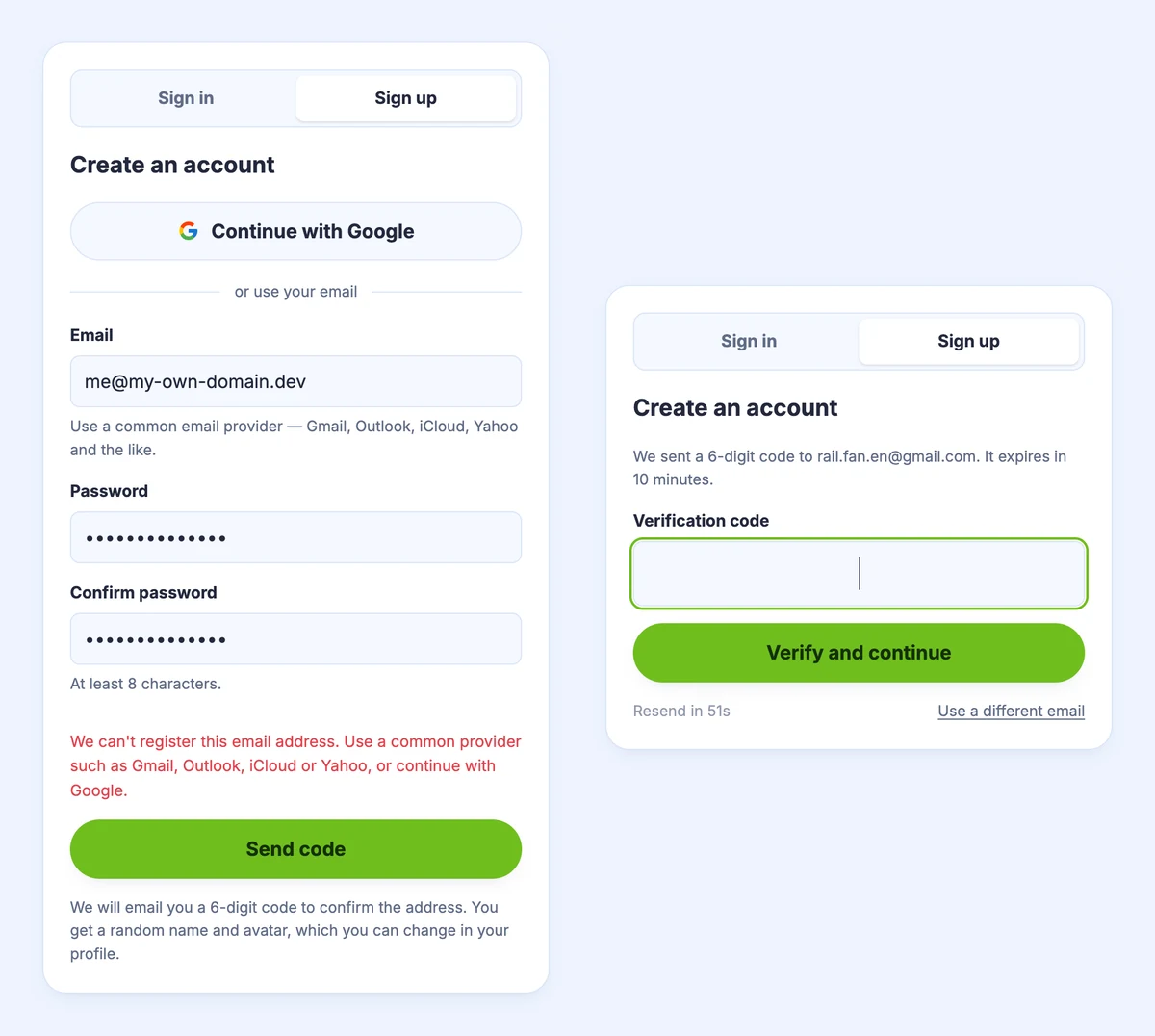
That's it. The account is created at the moment you enter the code, already verified. You get a random rail-themed name and a generated avatar, and you can change both from your profile whenever you like.
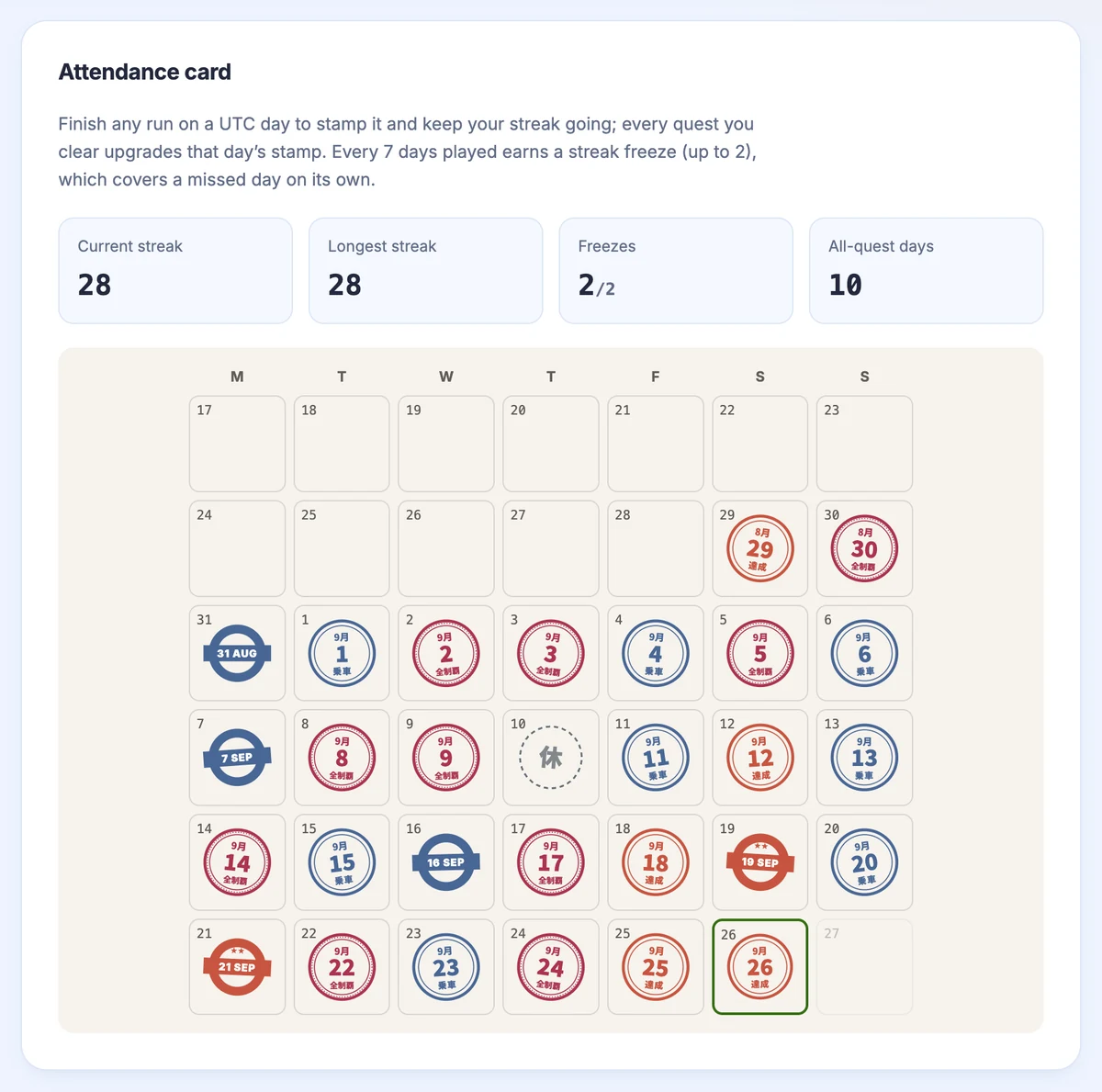
If you played as a guest in the same browser first, those runs come with you. Your scores, personal bests and daily-quest stamps move to the new account when you sign up.
Which email addresses work
Sign-up accepts addresses from the common mail providers: Gmail, Outlook and Hotmail, iCloud, Yahoo, Proton, QQ Mail and Foxmail, NetEase 163 and 126, Sina, Naver, Daum and Kakao, among others. An address on any other domain — a company address, a university address, or a domain of your own — gets this message: "We can't register this email address."
This isn't about whether your mail is real. Anyone who owns a domain can create unlimited addresses on it, and every new account comes with 7 days of Pro. Keeping sign-up to the big providers is the simplest way to keep that gift one per person. If your preferred provider isn't on the list, tell us through the contact page. Adding a provider is a one-line change.
The limit applies to creating an account only. Signing in to an existing account with its password, resetting a password, and signing in with Google work for every address.
Signing in and forgotten passwords
Next time, use the Sign in tab with the same address and password. If you forget the password, Forgot password? emails a code to the address. Enter the code with a new password, then sign in with the new password.
Every step that sends a code or checks a password runs a short automatic check first, which shows as Checking your browser… on the button. Usually you won't have to do anything. The button becomes clickable after a second or two.
Why we ask for a code
Some sites create the account first and verify the email afterwards. That leaves a gap: someone could register your address with a password of their own before you ever sign up, and that password would still work after you confirmed the address. By creating the account only once the code is entered, Rail Typing makes sure the only person who can open an email account is the person who can read that inbox.
Already on Google?
Nothing changes for you. Google sign-in works as it always has, and your account, history and Pro status stay where they are.
Ready? Create your account, then head to the Yamanote Line or today's daily quests for your first stamp.