There is a new tool on the site, and it has nothing to do with trains: a keyboard tester. Press a key and the matching key lights up on screen. Keys you have already pressed stay marked, so you can walk the whole board row by row and find the one switch that stopped responding. It covers the Apple Magic Keyboard in both US (ANSI) and Japanese (JIS) layouts, with and without the numeric keypad.
Press a key, see a key
The whole tool is one idea. Click Start testing, press anything, and the corresponding key lights up green. Let go and it dims — but not all the way: it keeps a lighter green mark to show it has been tested. A counter above the keyboard tracks how far you have got, something like 42 / 79.
That counter is the reason to use this rather than just typing into a text box. A key that produces nothing is invisible when you are typing normally — you notice a missing letter, not a missing key. Here you can go left to right along every row and watch the count climb, and the one key that refuses to light up is immediately obvious.
Coverage is counted per model. Switch from the compact board to the one with a numeric keypad and the target simply grows to include the keypad; nothing you have already tested is thrown away.
The five keys a JIS keyboard has and a US one does not
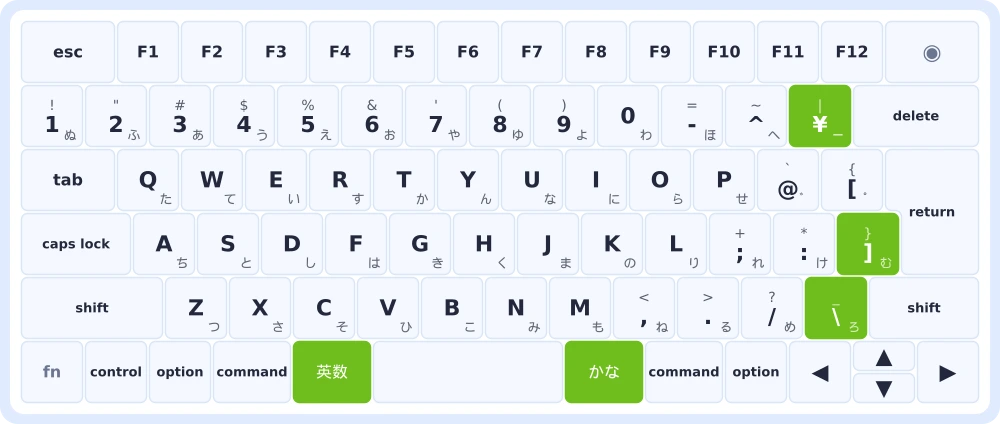
The Japanese layout is the more interesting half of this tool, and it is the reason it exists on a Japanese typing site at all. Compared with a US board, a JIS keyboard adds five keys — highlighted in green in the picture above:
- ¥ sits between
^anddeleteon the number row, which is why the JISdeletekey is narrower. - ] is on the home row, after
:. This surprises people: the browser reports it asBackslash, the same name the US layout uses for the key next todelete. - ろ sits between
/and the right shift, which is why the right shift is short. - 英数 and かな flank the space bar, which is why the JIS space bar is much shorter than the US one.
The return key is different too: on a JIS board it is the tall L-shape, and the notch in its lower left is exactly where that home-row ] sits. Switch between the two layouts in the tool and you can watch all of this move.
If you want the longer version of why the Japanese layout looks the way it does, that is in the Japanese keyboard layout guide.
What the numbers underneath mean
Below the keyboard the tool shows the raw browser event, which is worth understanding if you have ever wondered why a key "types the wrong thing".
event.code is the physical key. Press the key where Q lives and it says KeyQ — on a JIS board, on a US board, in Japanese input mode, in English, always. That is what the tool uses to decide which key to light up.
event.key is the character that key would produce right now. It changes with shift, with your keyboard layout, and with your input method. On a JIS board the key printed @ reports event.code: BracketLeft, because it sits where [ sits on a US keyboard. Nothing is broken; the physical position and the printed character are simply two different things.
There is also a most at once figure. Press five or six keys together and it tells you how many the keyboard actually reported — a quick check of how well your keyboard handles simultaneous presses.
Some keys cannot be tested, and that is not a fault
Being honest about this is more useful than pretending otherwise, so the tool says so on the page:
- fn / 🌐 and Touch ID are handled by macOS itself and never reach the browser. They are drawn hatched out and left out of the count, so 100% is genuinely reachable.
- Browser and system shortcuts — ⌘Q, ⌘W, ⌘Tab, F11 — are taken before the page ever sees them. No web page can test those.
- Caps lock sends one event when the light comes on and another when it goes off, so it stays lit for as long as caps lock is engaged. That is the keyboard working correctly, not sticking.
- 英数 and かな are often swallowed by the macOS input source switcher and never reach the page at all. If they do not light up, that is usually your input method, not a dead key.
Stuck keys and long presses
Hold a key down and it starts auto-repeating. The tool counts those repeats separately from real presses, so holding a key never inflates the "most at once" number.
Anything still held after about three seconds is flagged amber as possibly stuck. Modifier keys are exempt — holding shift or command for a while is perfectly normal — but a letter key that stays lit after you have taken your finger off is exactly the symptom of a sticking switch.
Where to start
Open the keyboard tester, pick your layout, and walk the rows. If everything lights up, the keyboard is fine and the problem is somewhere else.
And once it checks out, put it to work: the Japanese typing test will tell you how fast you actually are, the romaji table covers every spelling the game accepts, and the Yamanote Line is still the best place to start typing station names.