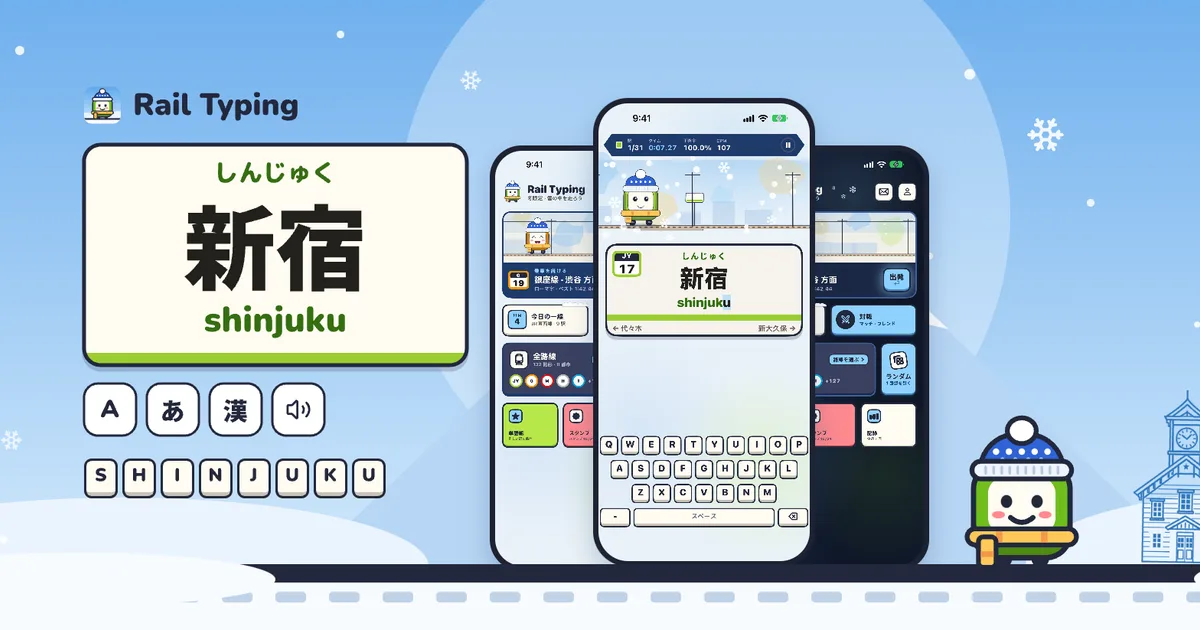
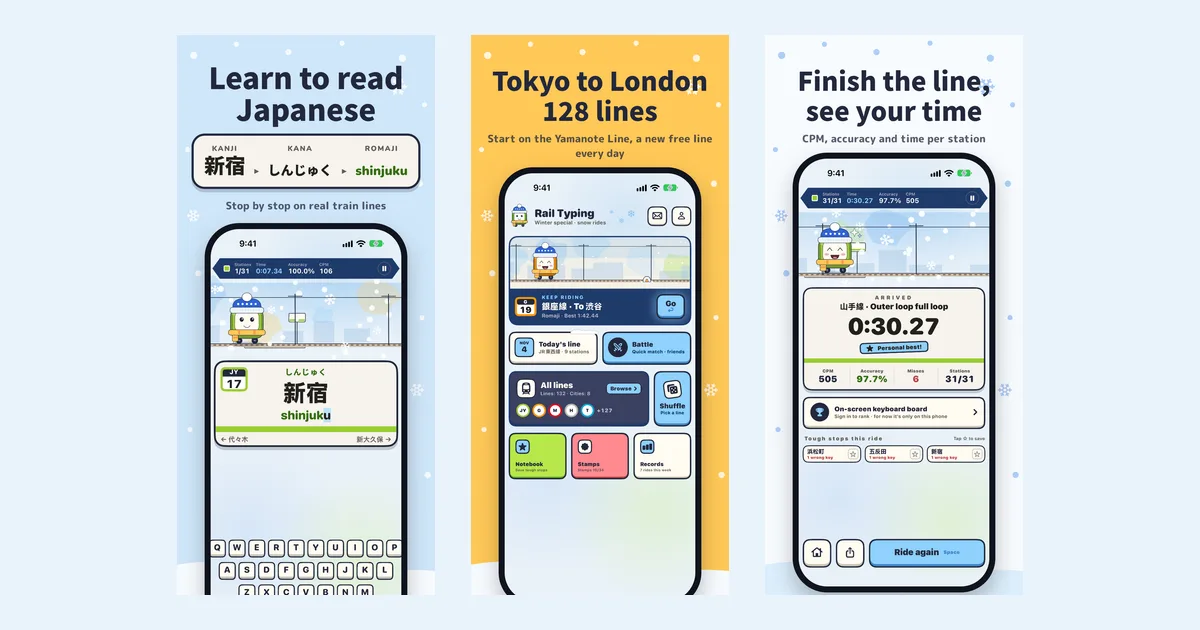
The quickest way to learn to read Japanese on an iPhone is to practise on words you will actually meet — and few words are more useful than train station names. This guide shows a five-step plan in Rail Typing, a free iPhone app that turns real Japanese train lines into reading practice: start by tapping kana without a keyboard, and finish by typing station names you only heard. Search "Rail Typing" on the App Store to follow along.
Why station names are good reading practice
- They are real, everyday words. 渋谷, 上野 and 品川 are on every map, ticket machine and announcement in Japan. Learning them pays off the moment you travel.
- Every one comes with its reading. Japanese station signs print the kana under the kanji, and so does Rail Typing's board: 新宿 → しんじゅく → shinjuku. You never have to guess.
- They repeat the patterns that make Japanese hard. Long vowels (東京 とうきょう), the small っ (日暮里 にっぽり), ん before a vowel (新大久保 しんおおくぼ) and kanji with several readings all show up again and again along a line.
- A line is a natural lesson. The Yamanote Line is 30 stations, a five-to-ten-minute ride. Finish it and you have read 30 place names.
Step 1: Learn the kana with choice mode (no keyboard)
If you are still learning hiragana and katakana, start in choice mode. The station is asked one syllable at a time and you tap the answer. There are three directions:
- Kana → romaji: see シ and pick from
shi / chi / tsu / ji. - Romaji → kana: see
tsuand pick from ツ / シ / ソ / ン. - Listen → kana: hear the station and pick each kana.
The wrong options are not random. They are the mix-ups learners really make — シ and ツ, ソ and ン, a missing small っ, おお against おう — so every tap trains the distinction you need. Beginner and standard show four options, hard shows six, and you can practise hiragana or katakana. It works one-handed on a train.
Step 2: Type the reading in romaji
Once the kana feel familiar, switch to romaji. The board shows the kanji, the kana and the romaji, and you type the reading. Both Hepburn and Kunrei spellings are accepted (shi or si, tsu or tu), and a wrong key is simply rejected, so there is no backspacing. This is where you start connecting 新宿 with its sound, not just its letters.
Long vowels are the first trap: 東京 is とうきょう, so the app wants toukyou, not tokyo. Our Hepburn romaji cheat sheet covers the spelling rules in one page.
Step 3: Spell it in kana
In kana mode you still type on a romaji keyboard, but the board fills in hiragana as you go. You stop thinking "s-h-i-n" and start thinking し・ん. It is the bridge between reading romaji and reading kana directly.
Step 4: Write it in kanji
Kanji mode uses the iOS Japanese keyboard. Type the reading and choose the right conversion — exactly how Japanese people type every day. Picking 新宿 out of the candidates is a small test of whether you really recognise the characters. The app walks you through adding the Japanese keyboard the first time.
Step 5: Read with your ears in listening mode
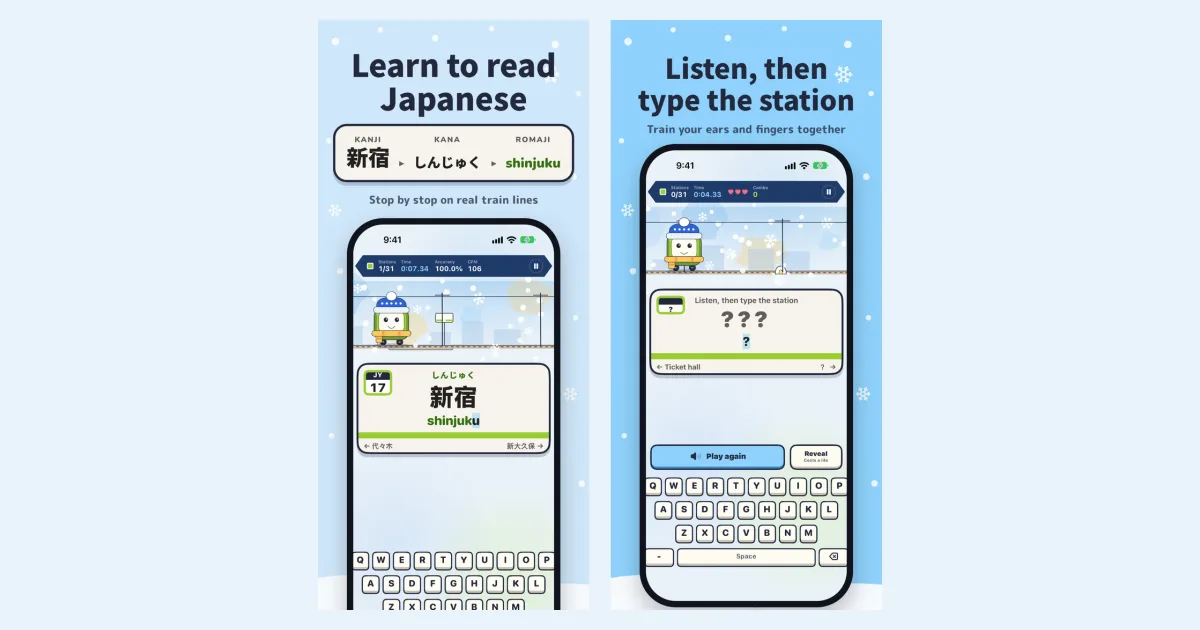
Listening hides the name. A recorded Japanese announcer reads the station, and you type what you heard in romaji. Space or the replay button plays it again for free.
- You have three lives. Revealing the answer costs one, and so does a fifth wrong key on one station.
- A station typed with no reveal and at most one wrong key extends your combo, and the combo speeds the announcer up: ×1.0, then ×1.15 from 5, ×1.3 from 10 and ×1.5 from 15. The voice is time-stretched, so it gets faster without going squeaky.
Listening is where reading turns into understanding: you hear しんおおくぼ and know it is shinnookubo. More on how it works in our listening mode guide.
Keep the hard ones: Notebook and Review train
Everyone has stations that will not stick. Tap ☆ to save them to your Notebook — from a line's station list, or from the list of toughest stops shown after every ride. Then start a Review train: your saved stations, shuffled, as a ride of their own, in any of the five Japanese modes. Type a station cleanly three times in a row and it graduates out of the notebook.
A simple weekly routine
| Day | What to do | Time |
|---|---|---|
| Mon, Wed, Fri | One Yamanote lap in the mode you are learning | ~10 min |
| Tue, Thu | Today's line in the same mode, saving new hard stations | ~10 min |
| Sat | Review train from your notebook | ~5 min |
| Sun | One lap in the next mode up, just to try it | ~10 min |
When you can finish a lap with 95% accuracy, move one step: choice → romaji → kana → kanji, then add listening.
Questions people ask
How long does it take to read a whole line? A Yamanote lap is 30 stations and takes most beginners 5–10 minutes in romaji. After a week of laps, most of its names become readable at a glance.
Can I use it if I only know a few kana? Yes. Choice mode was made for that: it teaches the kana chart through real names, one tap at a time.
Is learning station names useful beyond travel? They are ordinary Japanese words and kanji — 新 (new), 大 (big), 橋 (bridge), 田 (rice field) — so every station is also a kanji reading lesson.
Does this cost anything? The plan above works entirely for free: the Yamanote Line, Today's line and every mode are free. The All-lines pass only adds more lines.
Start today
Rail Typing is a free iPhone app — search "Rail Typing" on the App Store or open the App Store page. For an overview of everything in the app, read Rail Typing for iPhone.